
Audiostation
Running on Linux using Wine
Alex van den Berg
Created: Apr 06, 2026 - Updated: Apr 06, 2026
Running Audiostation on Linux
Thanks to MikeDebian and his contribution to our GitHub repo it's now possible to run Audiostation on Linux using Wine. Bellow you will find the written documentation and steps.
This documentation has been tested on Ubuntu 24 and with Audiostation version 2.4.0
Installation steps
Install Wine using the following command: apt install wine
Get the latest release from the releases page. Set up wine in its own prefix. Mine is located under .local/share.
$ env WINEPREFIX="$HOME/.local/share/wineprefixes/Audiostation"Create the folders if necessary and chdir into the new folder.Running the setup will work fine so just
$ wine Audiostation_2.4.0_windows.exeLet it run through, let it run its course. When you try to open up audiostation it WILL complain about missing the midifl2k.ocx file required to run Audiostation.
The file midi2flk.ocx is already included within the audiostation main installation directory.
IMPORTANT: You can't register this file YET. Wine will complain about missing mfc42 files.
Here is what you need to do (take my example and replace my prefix with your own).
Install Winetricks using apt-get install winetricks on Ubuntu.
$ winetricks mfc42 mfc40After that is done, now you can register the ocx file. Enter the directory:
cd "$HOME/.local/share/wineprefixes/Audiostation/drive_c/Program Files (x86)/Sibra-Soft/Audiostation/"Please run
$ wine regsvr32 midifl2k.ocxAfter it's been registered, audiostation opens like a charm under wine. I can even select my midi port.
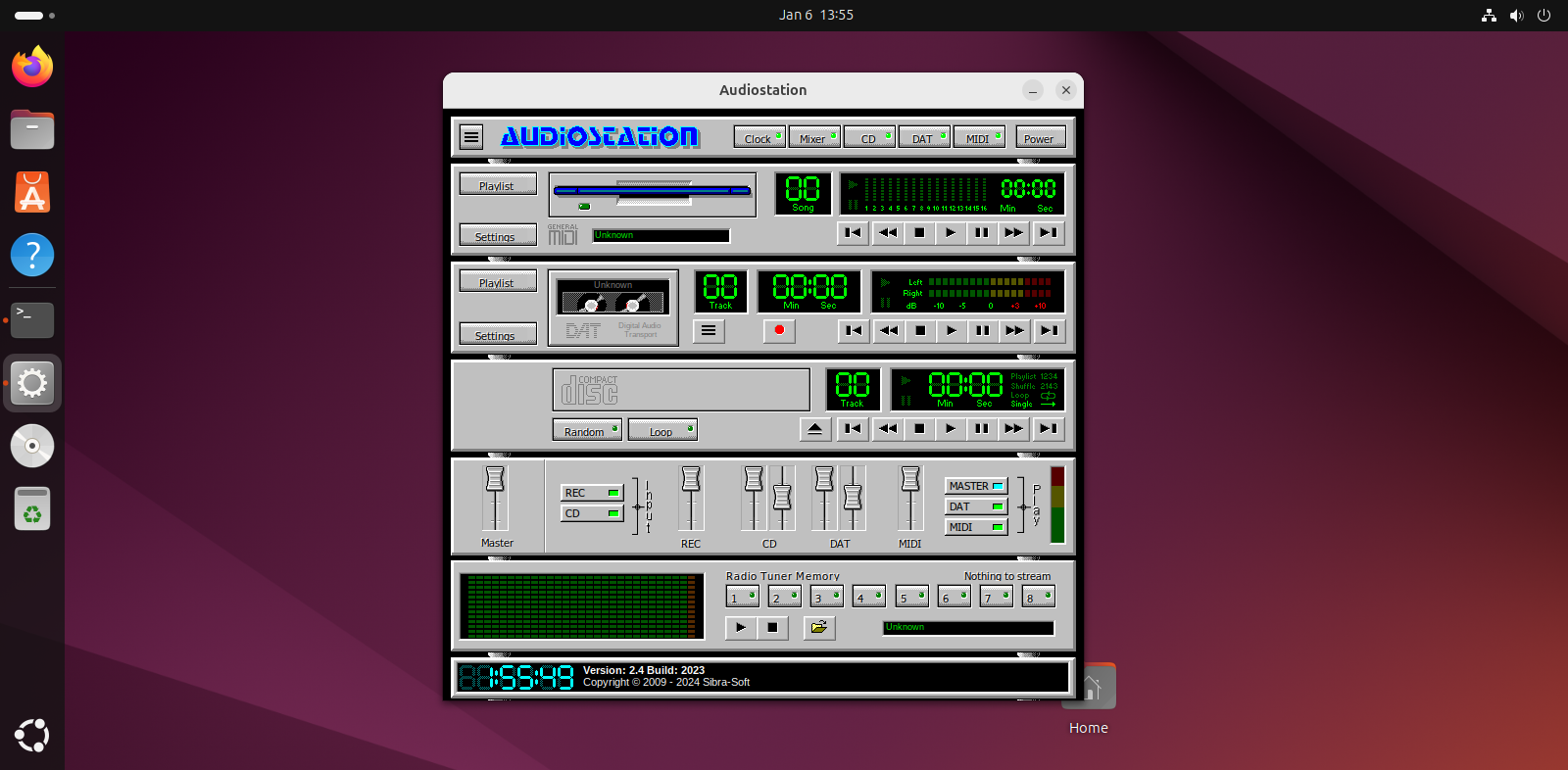
Create a desktop shortcut
Heres a .desktop file to put under
~/.local/share/applicationsWe will name it audiostation.desktop so it is
~/.local/share/applications/audiostation.desktopTo make it we type this in a terminal.
$ touch ~/.local/share/applications/audiostation.desktopBut we also need to make it executable:
$ chmod +x ~/.local/share/applications/audiostation.desktopOpen up the file with your favourite editor and put this in the file (I like the text editor nano). If you have a third mouse button (wheel button press down) you can just select the text below and press the wheel button to paste it in the file.
$ nano ~/.local/share/audiostation.desktop

[Desktop Entry]
Name=Audiostation
Comment=MediaRack (Wine)
Exec=sh -c 'env WINEPREFIX="$HOME/.local/share/wineprefixes/Audiostation" wine "C:\\Program Files (x86)\\Sibra-Soft\\Audiostation\\Audiostation.exe"'
Type=Application
StartupNotify=true
Icon=audio-x-generic
Terminal=false
Categories=AudioVideo;Audio;
Now save and close it (usually CTRL + X under nano. It will ask if you'd like to save it at the bottom, so press Y and enter) . If you use a launcher or a menu (gnome, kde, whatever. I use nwg-menu. Don't worry about it.)) it will now show up as Audiostation if you search for it or look under the Audio categories.
Add Audiostation icon
Next I can tell you how to extract the icon from the program and apply it to the desktop file.
To do that you usually need a tool called Wrestool from your favourite package manager to extract the ico file from Audiostation.exe. Please install it.
Enter the audiostation.exe working directory:
$ cd "$HOME/.local/share/wineprefixes/Audiostation/drive_c/Program Files (x86)/Sibra-Soft/Audiostation/"and type this
$ wrestool -x -t14 "Audiostation.exe" > Audiostation.icoNow, this ico file is a bit tricky and a bit wobbly, but imagemagick is the swiss army knife of image manipulation tools so lets install that from your favourite package manager and now type
$ convert Audiostation.ico[0] audiostation.pngNow you need a local repository to put that file so that the desktop file can find it without you having to enter the whole directory path.
First,
$ mkdir -P ~/.local/share/iconsThe directory might already exist, but this command does not overwrite or do anything bad. It just checks if the dir is there, and if it is not, it creates it.
Type this from the audiostation working directory:
$ cp audiostation.png ~/.local/share/icons/audiostation.pngThis command just copies the file we just created there.
Now open up your audiostation.desktop from ~/.local/share/applications in your favourite editor again (I'll just use nano as an example)
$ nano ~/.local/share/applications/audiostation.desktop

Name=Audiostation
Comment=MediaRack (Wine)
Exec=sh -c 'env WINEPREFIX="$HOME/.local/share/wineprefixes/Audiostation" wine "C:\\Program Files (x86)\\Sibra-Soft\\Audiostation\\Audiostation.exe"'
Type=Application
StartupNotify=true
Icon=audio-x-generic
Terminal=false
Categories=AudioVideo;Audio;
Please change the line:
Icon=audio-x-genericto
Icon=audiostation.pngSave and close the file (Usually CTRL + X under nano)
Now your launcher has a fancy and original icon.